
Overview
VIDIZMO enables users to create redaction codes that they can apply on redactions. These codes can help provide important context and explain why a specific piece of information was removed. Users can use predefined or create custom redaction code lists from the Portal Settings. These lists then can be utilized when redacting content in Studio Space. This feature plays a significant role in ensuring compliance with various regulations, such as the Freedom of Information Act (FOIA), by helping organizations manage and disclose redacted information accurately.
To read more about redaction codes and their applications, refer to Understanding Redaction Codes in VIDIZMO
Pre-requisites
- To perform redactions and use these codes, you need Redaction and Redaction Codes permissions. See Enable Features in the VIDIZMO Portal for more information.
- Ensure you belong to a group with the Manage Redaction Codes feature enabled.
- Ensure that detection classes are mapped to each redaction code so that automatic redaction applies the codes correctly. You can use default groups (such as U.S. FOIA or UK FOIA) or custom groups, but make sure classes are defined for every code.
Apply Redaction Codes Automatically
The Apply Redaction Codes option in VIDIZMO Indexer allows redaction codes to be applied automatically during automated redaction workflows.
Steps
-
Open the VIDIZMO Indexer settings in your portal.
-
Locate the Apply Redaction Codes option.
-
Toggle the option On to enable automatic application.
- When enabled, redaction codes mapped to detection classes will automatically apply to videos, images, and audio uploaded to the portal.
- Manual redaction and redaction performed in Studio are not affected by this setting.
-
Upload a video or image file to the portal.
-
The system will automatically apply the redaction codes based on the mapping defined in your redaction code groups.
NOTE: Redaction codes are automatically applied to video, image, and audio content.
For detailed configuration, see the article Configuring VIDIZMO Indexer.
Apply Redaction Codes in Studio Space
You can apply redaction codes to your content in Studio Space by following these steps.
Steps
-
From your content file, click the Overflow menu (⋯) and select Redact using Studio.
-
Choose how you want to identify content for redaction:
- Manual Selection: Select a class (e.g., Face) to manually draw a bounding box or Custom Object tools from the action menu to manually select content.
- Auto Detect: Use automatic detection for supported classes. You can customize which classes are auto-detected in the Studio Space settings.
-
All your selections appear in the left panel. Select one or multiple items to which you want to apply redaction codes.
-
Click the menu icon (three dots) to open the list of available redaction codes. This includes both default VIDIZMO codes and any custom codes you have created. See How to Create Redaction Codes in VIDIZMO for guidance on creating code lists.
-
From the list, select the redaction codes you want to apply to your current selections or automatically detected content.
-
Ensure the Apply Redaction Codes toggle in the Studio Space ribbon is enabled. This applies the selected redaction codes to the chosen content.
- To remove the applied codes while keeping the redaction boxes, disable the toggle.
Note: Changes made in Studio Space are temporary. They remain in effect only while Studio Space is open. Once you exit, these modifications will be lost.
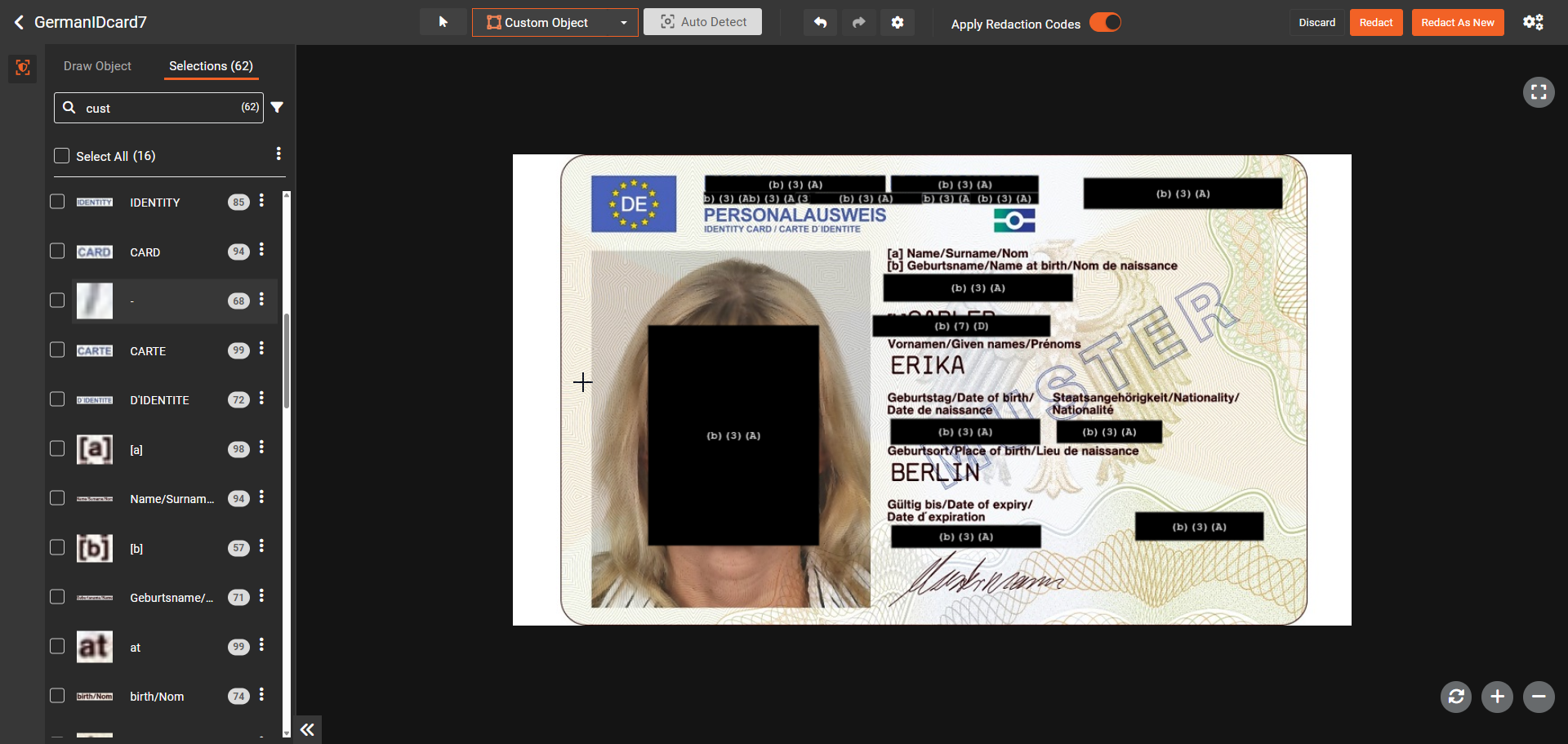
- Click "Redact as New" to save.
Apply Redaction Codes to Audio Content
You can apply redaction codes to audio content in Studio Space. The codes are applied to PII entities or manually selected segments in the audio transcript.
- From your audio content, select the overflow menu and select Redact using Studio.
- Review the transcript and identify or auto-detect PII entities.
- Select one or multiple items in the left panel.
- Select the menu icon to open the list of available redaction codes and select the codes to apply.
- Ensure the Apply Redaction Codes toggle in the Studio Space ribbon is enabled.
You can also apply codes automatically through mapping configurations for large-scale audio processing.
After redaction processing:
- The audio segments containing redacted information are muted.
- The corresponding transcript regions display the assigned redaction code (e.g.,
[(b)(1)(A)]) instead of asterisks.
Note: Applied codes are visible in Studio Preview, allowing you to verify that the correct codes are applied to each redacted segment before processing.
After the redacted audio is published, the redaction codes are also visible on the playback page. When viewing the transcript alongside the audio player, the redacted segments display the assigned redaction codes in place of the original text.
Configure Redaction Style Options in Studio Space
You can adjust the properties of applied redaction codes or create new redaction code groups directly from Studio Space.
Steps to Configure Redaction Style Options
- Open Redaction Settings in Studio Space.
- Click Redaction Codes to view existing code lists.
- Select a code list to view or modify its codes.
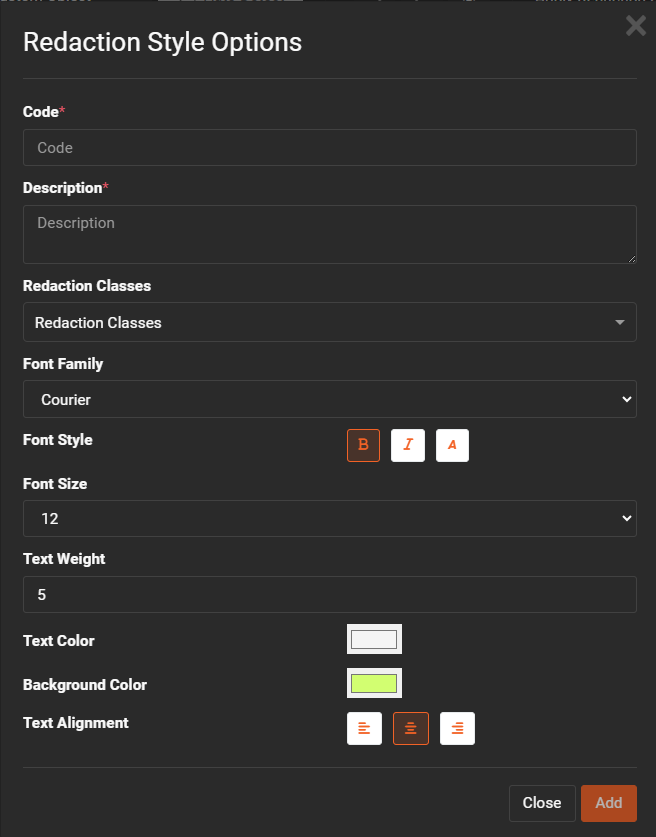
- To add a new code, click + Add New Code and configure the following properties:
- Code: The name of the redaction code.
- Description: Details about what the code represents.
- Redaction Classes: Map the code to detection classes.
- Font Family: Choose a font for the code display.
- Font Size: Set the size of the code text.
- Font Style: Apply styles such as bold or italic.
- Text Weight: Set the weight of the text (1–10).
- Text Color: Choose the color for the code text.
- Background Color: Select the background color for redacted areas.
- Text Alignment: Determine where the code appears on the redaction.
- Click Add to save the new code to the list.
- To modify properties of existing codes in the list, click the configurable options next to the code and make your changes.
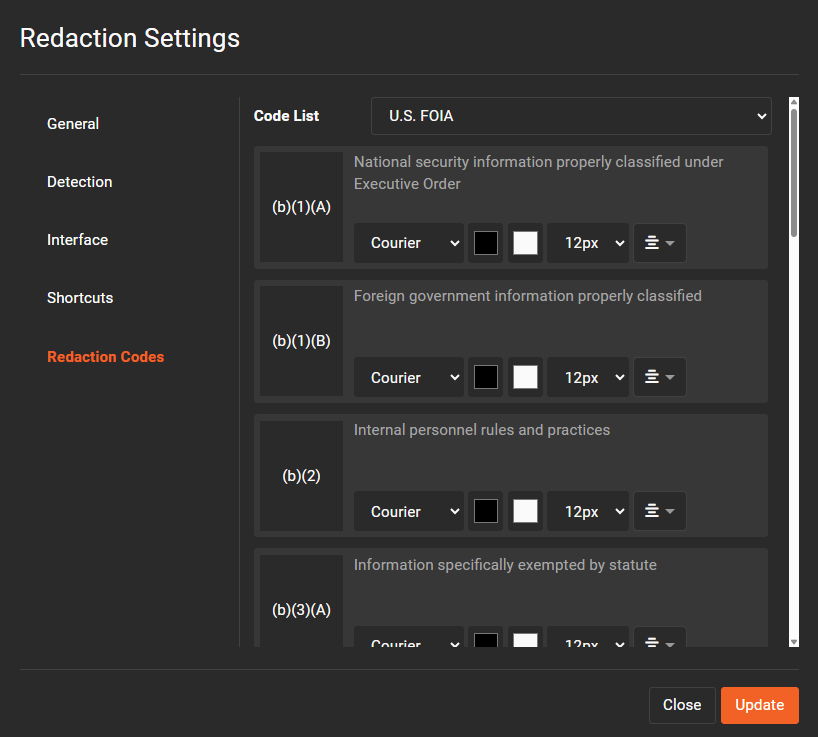
- Click Update.