
The upload feature in VIDIZMO lets you add various types of files to your Portal's library. These types include videos, images, audio files, documents, SCORM packages, and more. In an EnterpriseTube (or EVCM) Portal, uploaded files are often called media.
What you can upload depends on your product package and Portal settings. If you have administrative access (for example, as a member of the Portal Manager group), you can configure these settings.
After an upload finishes, VIDIZMO starts processing the file by triggering a workflow. The workflow activities or actions during upload also depend on your Portal's configuration.
The most common activity is transcoding, which is enabled by default on all VIDIZMO Portals. Transcoding creates optimized renditions so your media plays smoothly across devices and bandwidths and supports formats that aren't natively supported, such as .mov
This article explains how to upload content to your VIDIZMO Portal.
Prerequisites
To upload content to your Portal, you need the required feature permissions. In VIDIZMO, feature permissions are granted through groups. Ensure you belong to a group that provides one of the following:
- Upload and manage my content: Lets you upload and manage your items in My Library (your private library). Commonly included in the Contributor group.
- Upload and manage all content: Lets you upload and manage all items across the Portal and access Media Manager, in addition to My Library. Commonly included in administrative groups such as Content Manager.
Upload Media
Follow these steps to upload media to your EnterpriseTube Portal:
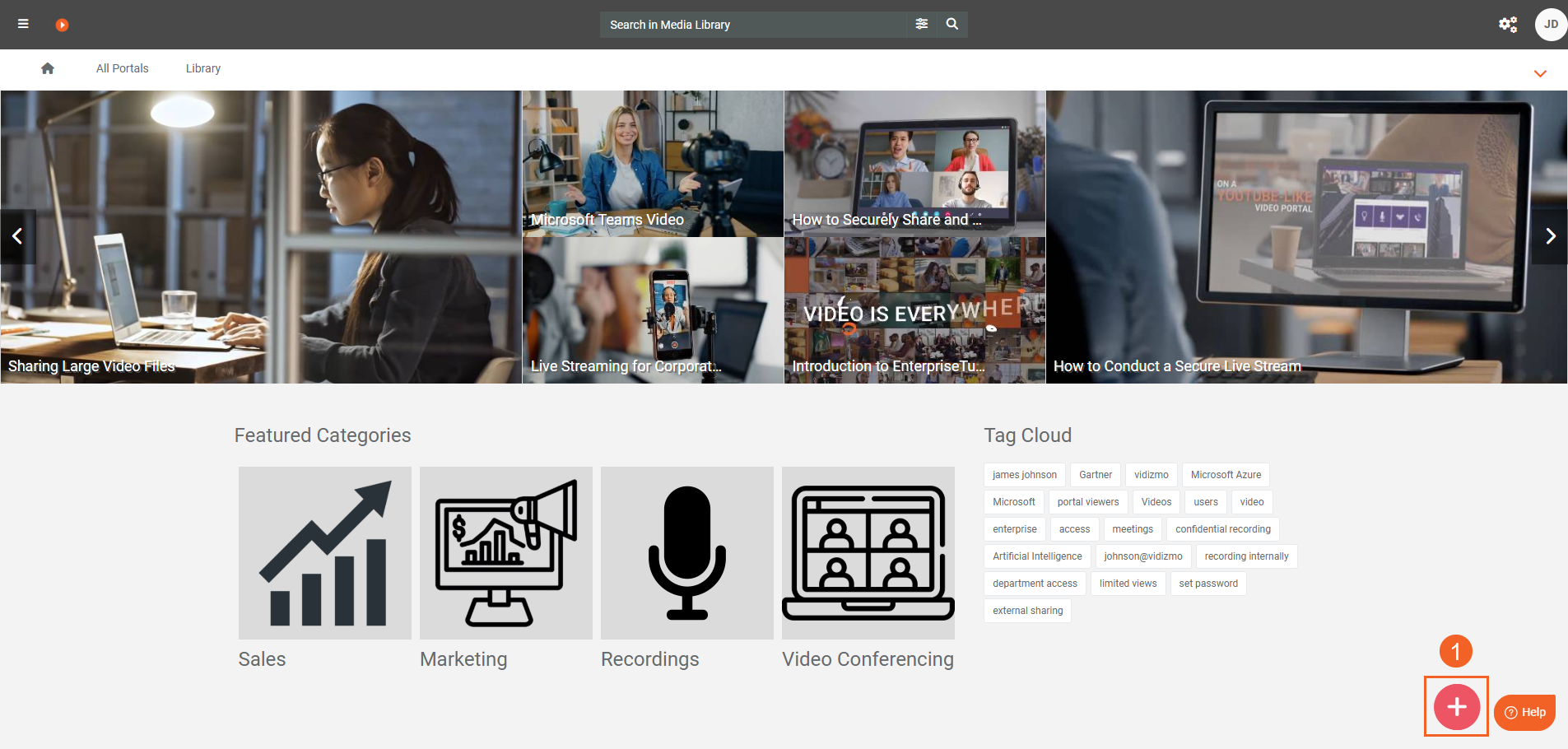
- Click the Add Media button (bottom-right) to open the upload page.
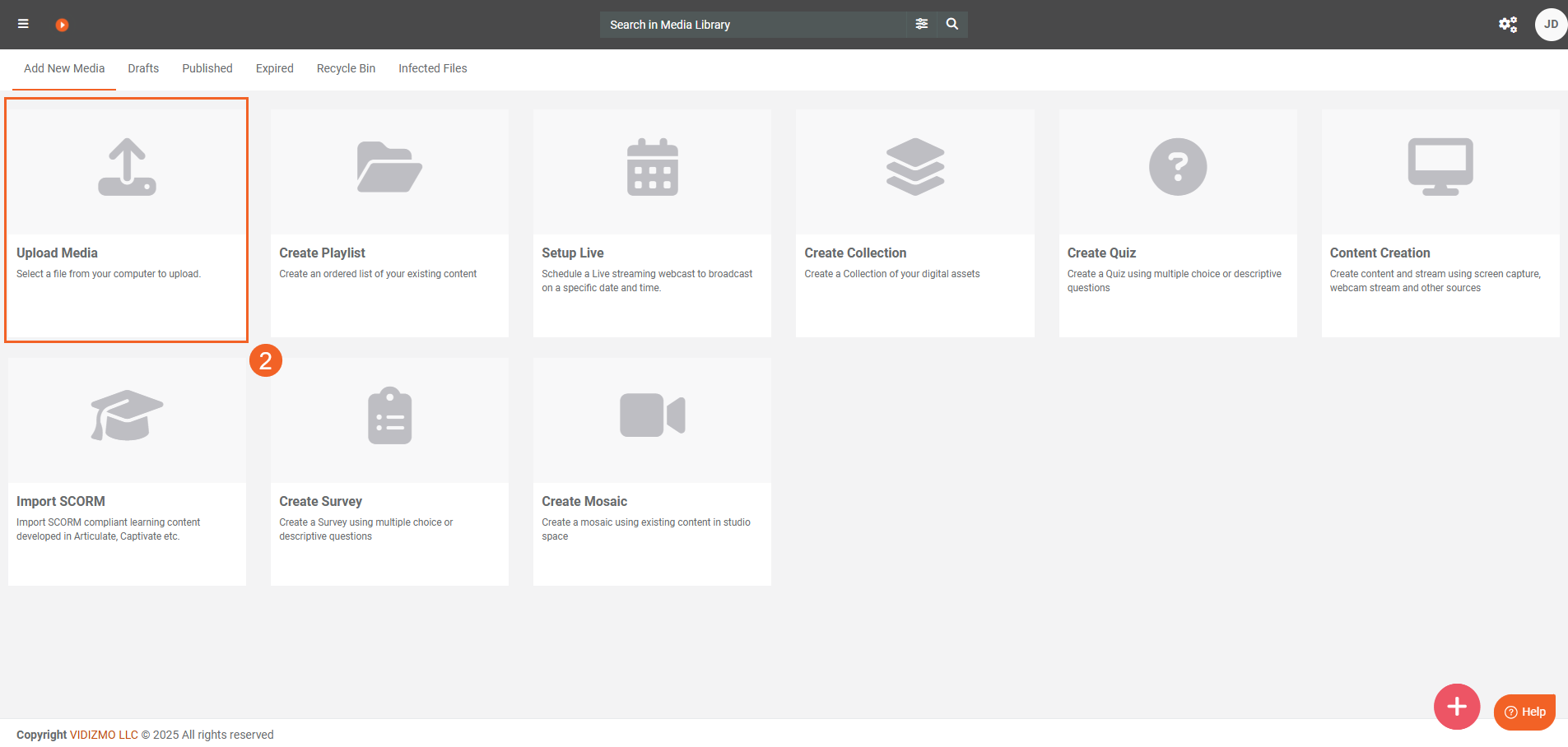
- Select Upload Media
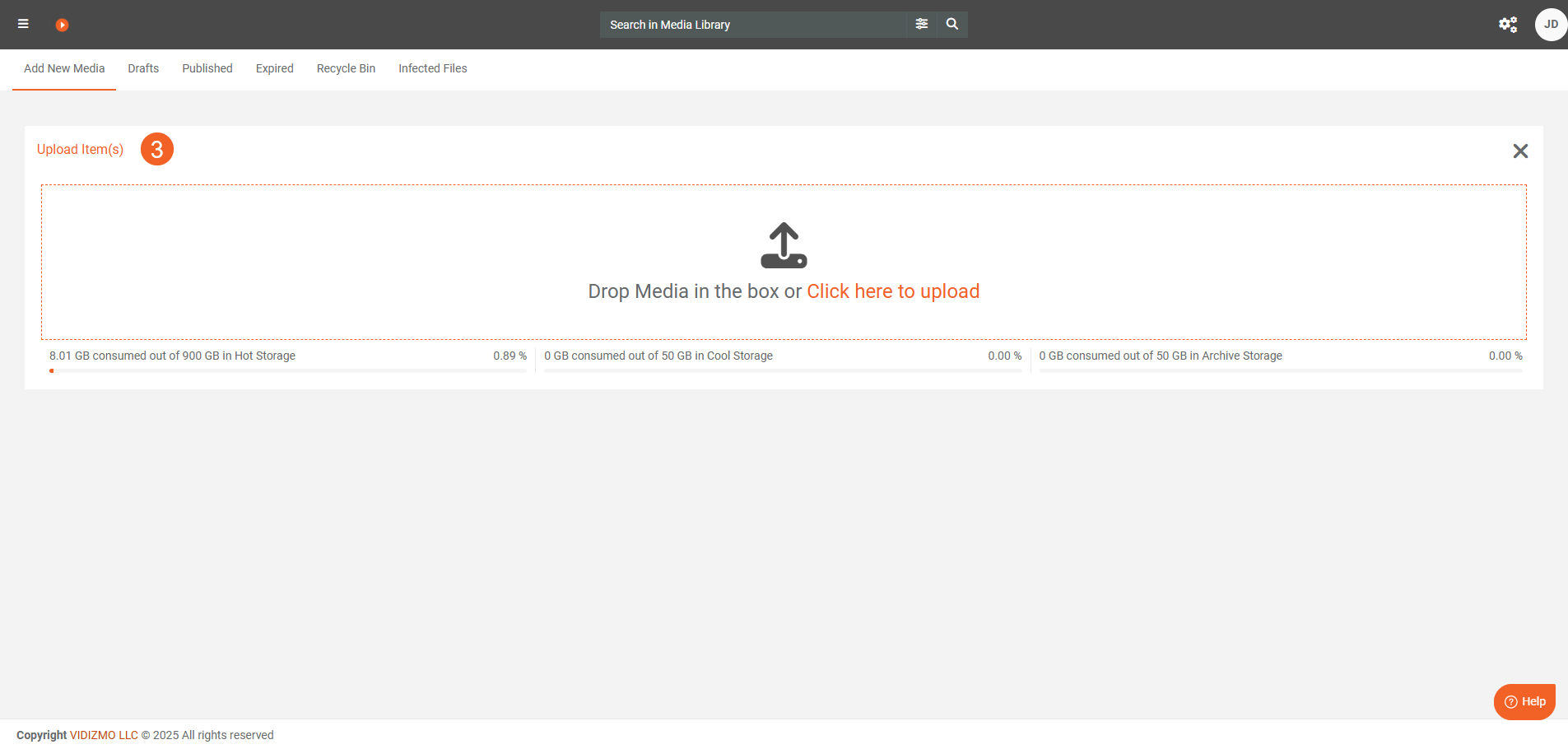
- Drag one or more files into the upload area, or select Click here to upload and choose your files.
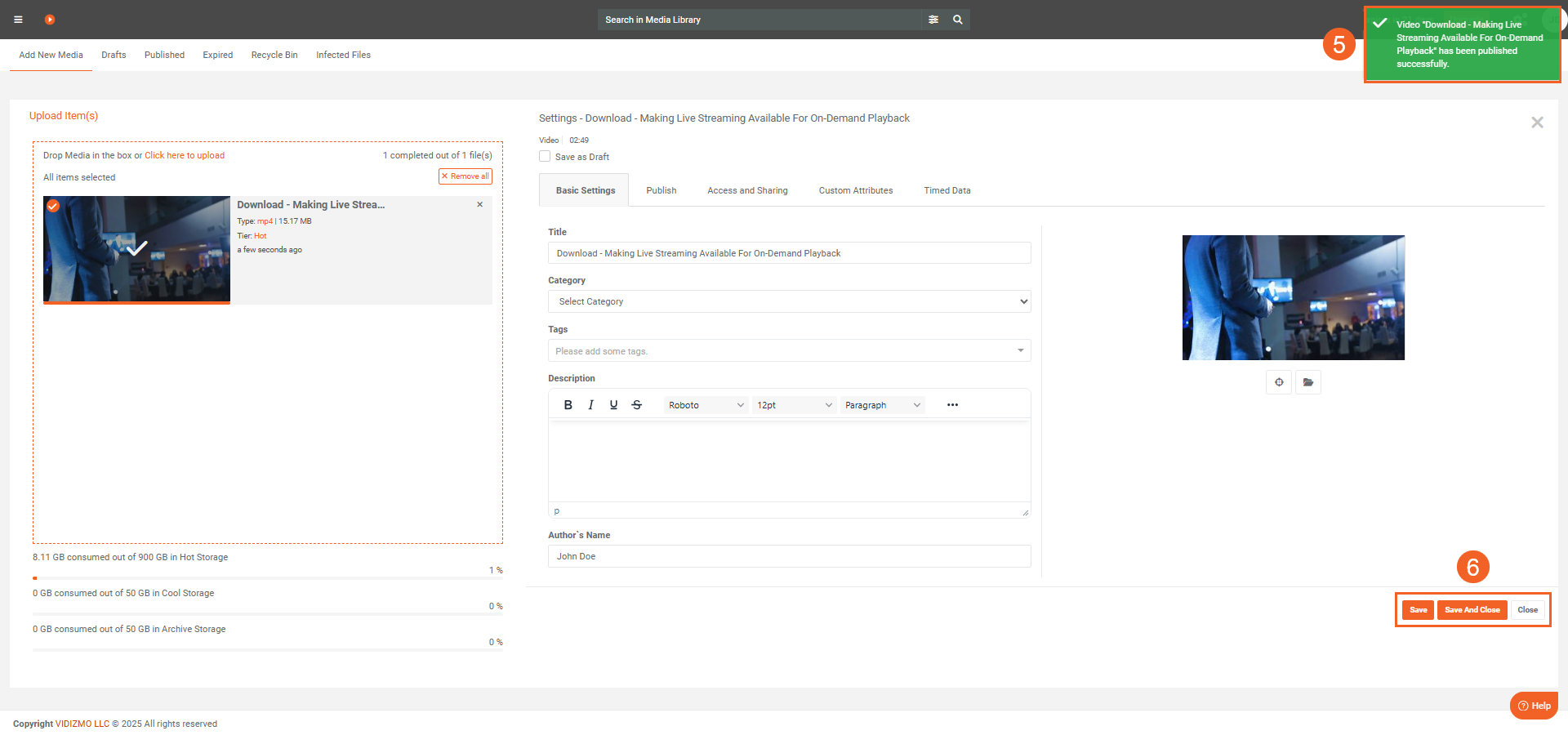
- As the upload starts, the settings interface opens. Use it to monitor upload progress and configure settings for your file. The progress indicator appears on the left—ensure it reaches 100% for a successful upload
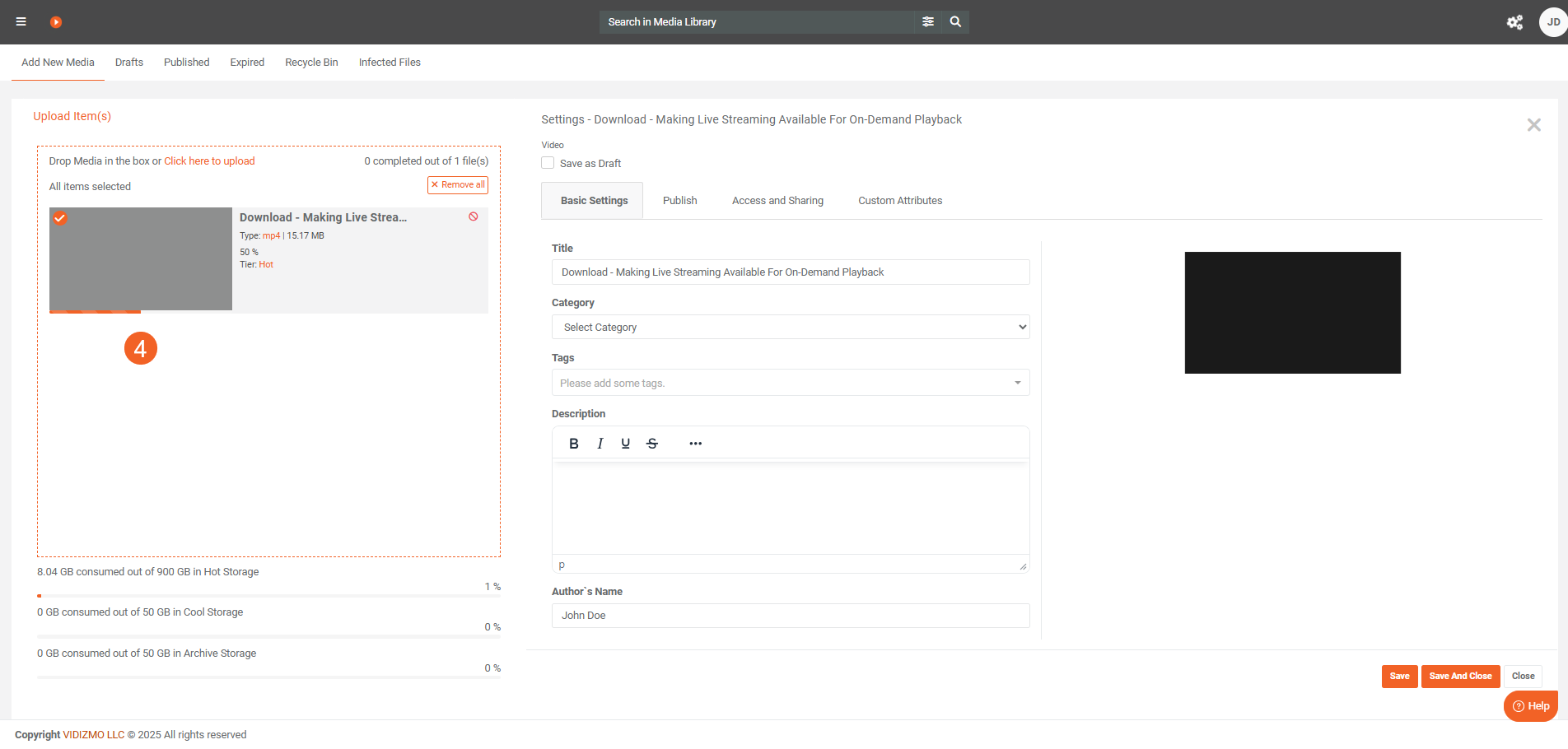
- When the upload is complete, VIDIZMO displays a notification indicating that the media has been published, drafted, or sent for moderation. The message depends on your Portal settings.
- Next, you can either: i. Select Close to exit without changing any settings. ii. Select Save & Close to save your settings and return to the library. iii. Continue editing the settings. Use the Save button to save changes while keeping the interface open.
Configure Media Settings during Upload
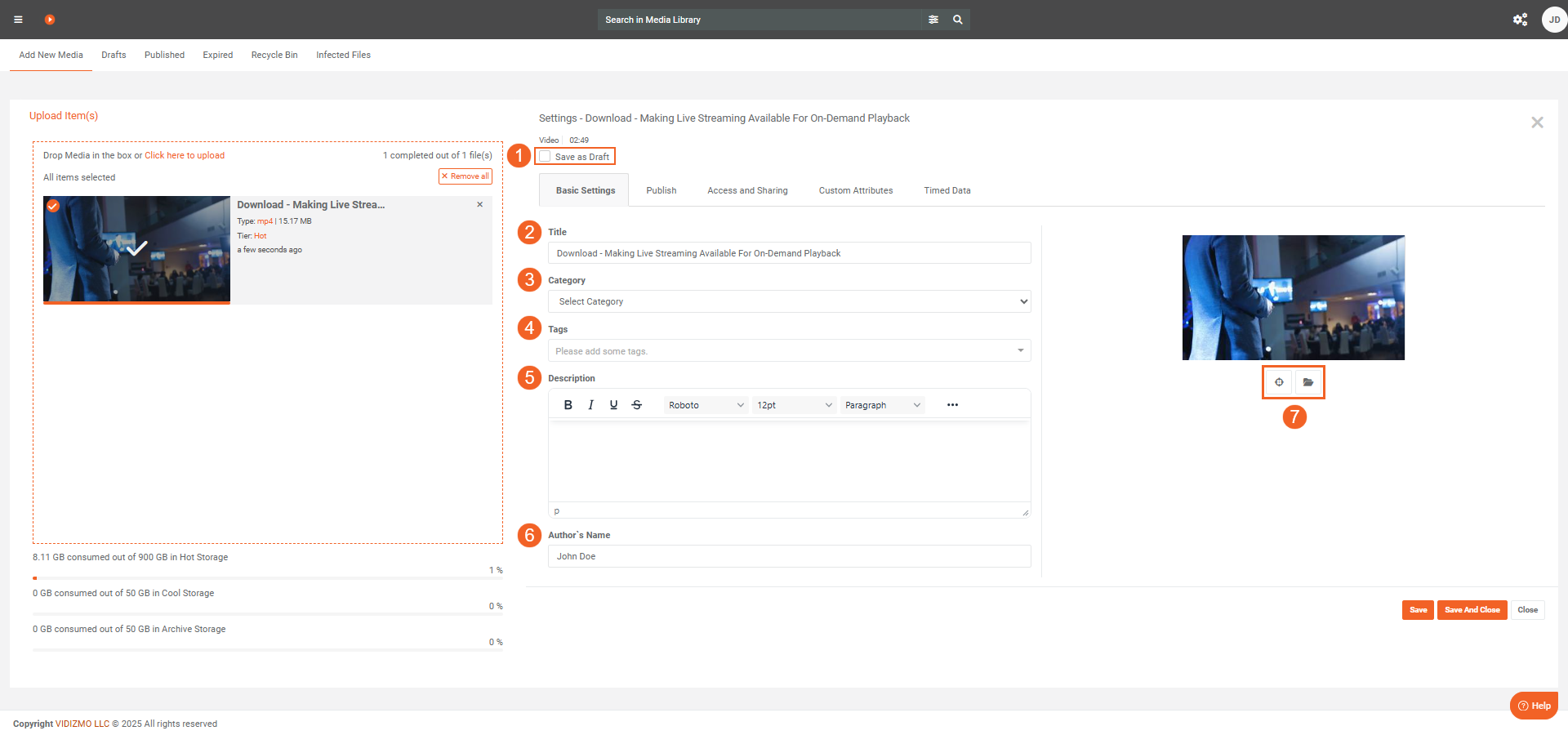
A. Basic settings
- Save as draft: Saves the media to the Draft tab. Drafts don't appear in the Portal library until published. Users with appropriate permissions (for example, those part of the Content Manager group) can publish drafts
- Title: Enter a clear, searchable title. The field is prefilled with the file name—you can change it.
- Category: Select a category for the media. The list shows categories created on your Portal.
- Tags: Add or create tags to improve search and discovery.
- Description: Provide a description. You can format text in the editor and use HTML if needed.
- Author: Update the author name if required. By default, this is your username.
- Thumbnail: Capture or upload a thumbnail for your video. See How To Capture And Upload Media Thumbnail. for more
B. Publish
Use Publish settings to control how the media plays, what counts as a completion, and whether viewers can download, comment, or embed it
- Player template: Choose a player template for playback. VIDIZMO provides default player templates, and you can also create and use custom templates in your Portal. See How to Add, Edit or Delete a Player Template.
- Completion criteria: Set the percentage of the media a viewer must watch (or listen to) for VIDIZMO to count a completion in analytics.
- Example: If you set Completion criteria to 70%, viewers must complete at least 70% of the media for a completion to be recorded.
- Completions drive analytics and can also be used to award certificates (see next step).
-
Certificate Template: Select a certificate template to award a certificate when a viewer meets the Completion criteria. VIDIZMO includes default certificate templates; you can also create custom templates in your Portal and select them here. This setting is optional. See How to View and Add Certificate Templates in VIDIZMO
-
Other Options: Configure additional options for the media:
-
Allow embedding: Turn on to allow the media to be embedded on other sites. If you turn this off, existing embeds will no longer work.
-
Generate Code Create the embed code that viewers can use to embed the media with
or